
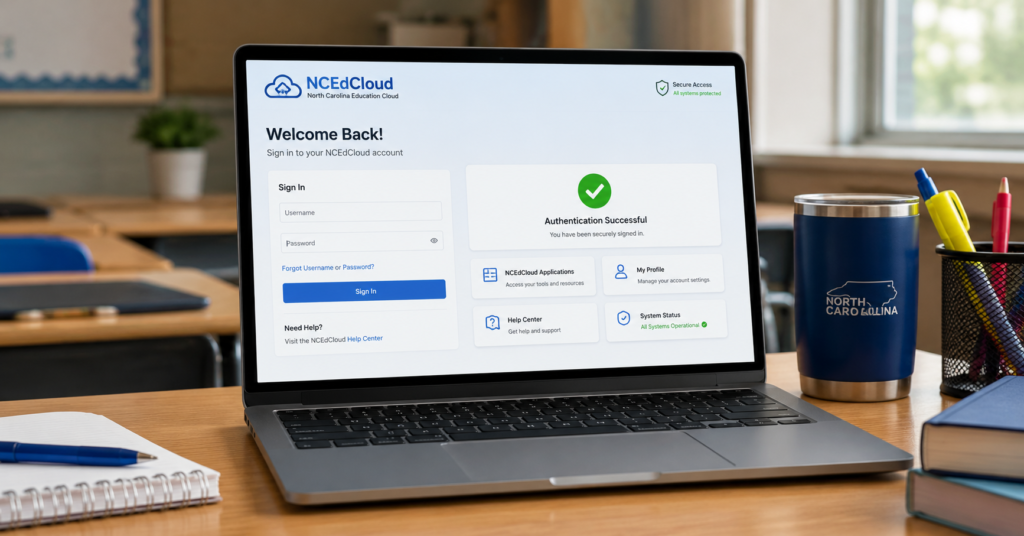

It is Monday morning, your first class is starting in five minutes, and you are staring down a bright red error message on your screen. You type in your login credentials again, slower this time. Nothing happens. Your account is completely locked.
If you are a student, teacher, or parent in North Carolina, this frustrating situation probably sounds all too familiar. Getting locked out of your educational dashboard can bring your entire school day to an unexpected halt.
Fortunately, getting back into your system is much simpler than it looks. By using the official NCEdCloud Account Recovery protocols, you can bypass the login errors and regain full access to your school tools. This complete walkthrough will show you how to unlock your NC account without losing your mind or waiting hours for the school IT desk to call you back.
What is NCEdCloud and Why Are You Locked Out?
Before we start clicking buttons, let’s look at what this system actually does. The North Carolina Educational Cloud is a unified identity management service. It allows school systems across the state to access vital platforms like PowerSchool, Canvas, and Schoolnet using just one single username and password.
Because it is a single sign-on platform, security is incredibly tight. There are three common reasons why you might find yourself locked out of the system:
- Too Many Failed Attempts: If you type the wrong password several times in a row, the portal automatically freezes your profile to protect your private student records from unauthorized access.
- Forgotten Username or IAM ID: Your username is typically your unique 10-digit state student identification number. If you mix up even one digit, the system will flag the login attempt as invalid.
- Expired Password Credentials: The state database requires users to update their security passwords periodically. If you miss the update deadline, your old password simply stops working.
Step-by-Step NCEdCloud Account Recovery Process
If your login screen is completely frozen, do not panic. Follow these straightforward steps to reset your security details and get back to your online assignments:
Step 1: Head to the Official Portal
Open your web browser and go straight to the official NCEdCloud Identity Management System IAM portal. Do not use unverified third-party search links, as they might lead to insecure clone pages.
Step 2: Use the Recovery Links
Directly underneath the main login box where you enter your username, look for the blue links labeled “Forgot Password” or “Forgot Username.” Click the specific option that matches your current problem.
Step 3: Enter Your Unique Student IAM ID
The system will ask you to provide your 10-digit login ID. Type it in carefully, without any spaces or dashes. You will also need to complete a simple CAPTCHA security puzzle to prove you are a real person.
Step 4: Answer Your Saved Challenge Questions
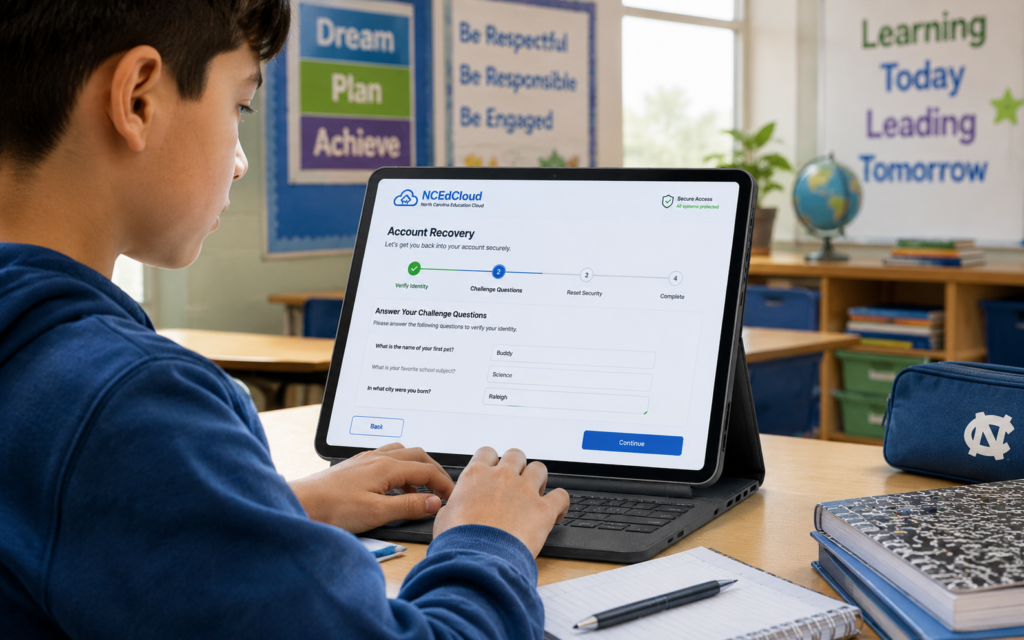
Next, the recovery wizard will show you the specific security challenge questions you picked when you first activated your profile. Type your answers exactly the way you wrote them the first time. Keep in mind that these answers are usually case-sensitive!
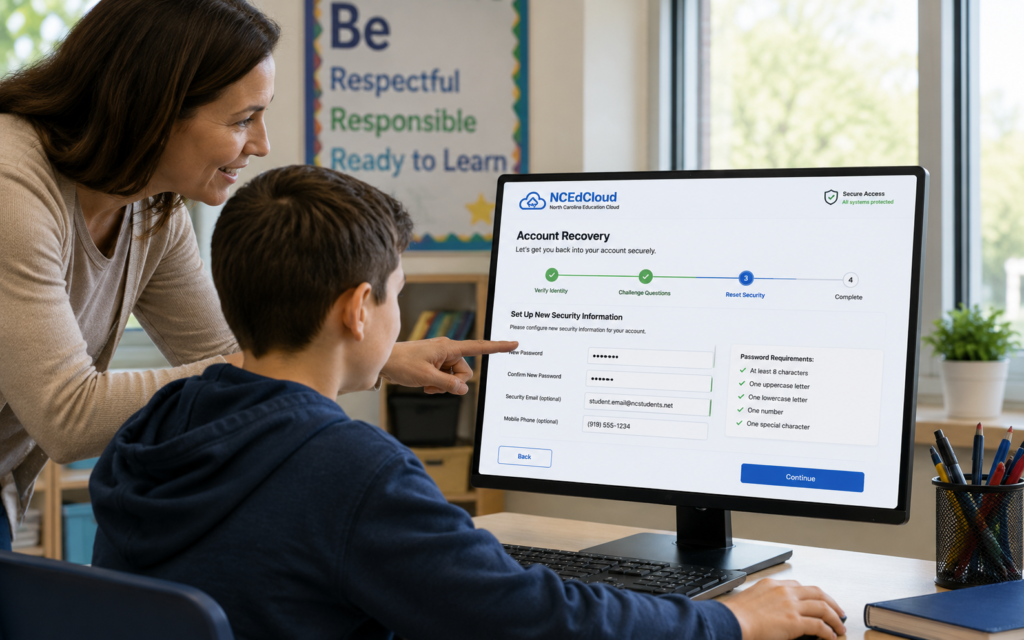
Step 5: Choose a Strong New Password
Once the portal verifies your identity, you will be prompted to pick a new password. Make sure it meets the state security requirements. It must include an uppercase letter, a lowercase letter, a number, and a special character (like an exclamation mark or a hash symbol).
My Experience: The Forgotten Security Questions Trap
When I was managing tech devices for a local middle school, I saw dozens of students get trapped by their own security challenge questions. They would rush through the initial configuration process on the first day of school, writing down completely random answers just to get to the next screen.
Three months later, when they actually needed to use the recovery tool, they couldn’t remember if their favorite childhood pet was named “Max,” “max,” or “Buddy.” They ended up completely locked out of their accounts because of a minor capitalization mistake.
Take it from me: when you set up your security profile, treat your answers like gold. Write them down in a secure notebook at home, or use a trusted family password manager application. Taking ten extra seconds to store your recovery answers accurately will save you an incredible amount of stress later in the school semester.
What to Do If the Recovery Tool Fails
Sometimes, you can follow the steps perfectly and still find yourself stuck. If the online automated wizard refuses to unlock your profile, you still have a few solid troubleshooting options to get back online:
- Clear Your Web Browser Cache: Sometimes, your computer stores broken, outdated login data. Clear your cookies and history, or try opening the login portal inside a private incognito browser window.
- Double-Check Your Student ID Numbers: If you are a parent helping a child, look at a physical copy of an old report card or a school ID badge. It is incredibly easy to accidentally swap two numbers when typing out a long 10-digit string.
- Ask Your Classroom Teacher for a Sync Reset: Teachers have special administrative permissions inside their local dashboards. They can instantly see your true username, view your challenge questions, or trigger a temporary reset code right from their desks.
- Contact Your School’s Dedicated Technology Champion: Every North Carolina school district has a designated technology support technician. If your teacher cannot resolve the system error, they can escalate your problem directly to the district IT coordinator to override the lock manually.
Quick Tips for Keeping Your Account Safe and Accessible
Once you get your account running smoothly again, you want to make sure it stays that way. Implement these quick, actionable habits to avoid future login headaches:
- Do Not Share Your Login Details: Never give your password to your school friends, even if they just want to check a shared group project assignment. If they accidentally lock your profile, you are the one who misses class.
- Update Your Answers Every Year: When you return to school after summer vacation, log into your profile settings and update your security questions to things you will easily remember throughout the year.
- Bookmark the Direct Address: Save the official login link directly to your browser’s favorites bar so you never accidentally click on an outdated or broken link.
Wrapping It Up
Getting locked out of your school workspace is incredibly annoying, but completing an NCEdCloud Account Recovery doesn’t have to ruin your afternoon. As long as you know your 10-digit ID number and keep track of your private security questions, you can learn how to unlock your NC account in just a few clicks.
Did this guide help you get back into your school portal today? Have you ever run into a weird login error that required extra help from your teacher? Let us know your troubleshooting stories in the comments section down below! If you found these tech tips useful, please share this post with other students or parents in your community, and subscribe to our blog for more helpful software guides.
For More Information, please visit:Techenter.co.uk