

Have you ever spent hours perfecting a beautiful 3D model in Blender, only to feel completely defeated when trying to get it into Source Filmmaker? I know that exact feeling. The first time I tried a model import, my meshes exploded, my textures looked like missing purple checkerboards, and the engine kept crashing. Valve’s Source Engine is incredibly powerful, but its pipeline can feel like a stubborn puzzle from 2004.
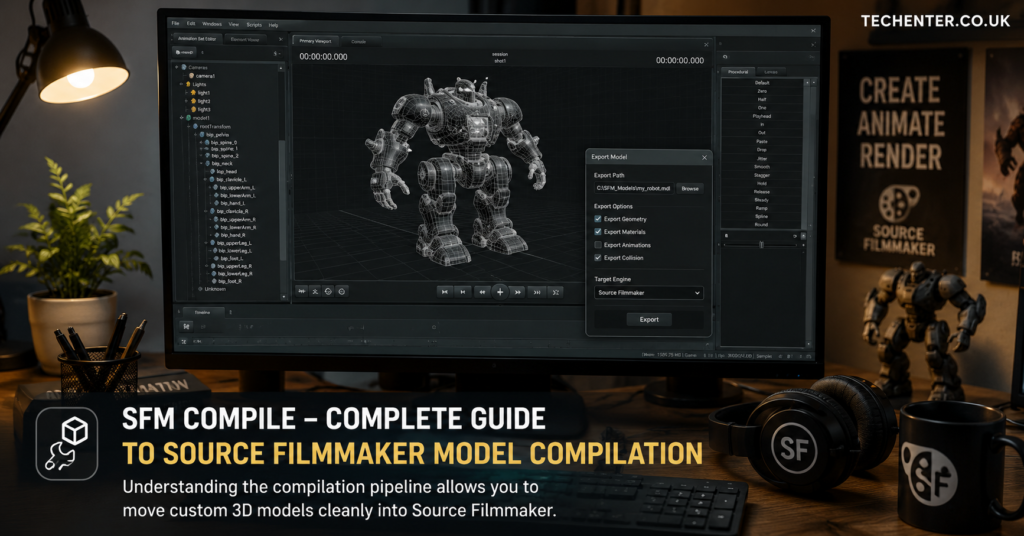
The secret key to bridging the gap between your 3D modeling software and your animation timeline is the compilation phase. In this SFM Compile: Complete Guide to Source Filmmaker Model Compilation, we will break down the entire technical workflow into plain English. We will cover the essential files you need, how to format your text instructions, and how to fix the common bugs that drive creators crazy.
[INSERT IMAGE 1 HERE]
What Is SFM Compile?
Source Filmmaker cannot read standard raw 3D files like FBX or.OBJ directly while you animate. Instead, the engine requires a specialized, optimized proprietary format consisting of.MDL (model data),VVD (vertex data), and VTX (hardware-specific mesh information).
An SFM compile is the process of taking your raw exported geometry and running it through Valve’s command-line compiler, known as studiomdl.exe. This tool converts meshes, skeleton bones, material references, and hitboxes into a format that Source Filmmaker can load and use efficiently.
Why Is SFM Compilation Necessary?
Without compilation, Source Filmmaker cannot recognize or load custom models. The compilation process ensures that:
- Meshes are optimized for the Source Engine.
- Materials and textures are correctly linked.
- Skeletons and animations work properly.
- Hitboxes and physics models are generated.
- Assets can be loaded without causing performance issues.
Think of compilation as translating your model into a language that the Source Engine understands.
Essential Files Required for SFM Compilation
Before you start compiling, you need several key files prepared and organized.
Reference Mesh Files (SMD or DMX)
Your model must be exported from Blender, Maya, or another supported 3D application using Source-compatible tools.
Common formats include:
- .SMD (Studio Model Data)
- .DMX (Data Model Exchange)
Most projects require:
- A reference mesh
- Optional animation files
- Optional physics meshes
Texture and Material Files (VTF and VMT)
The Source Engine uses two separate file types for materials.
VTF Files
VTF (Valve Texture Format) files contain the actual texture images used by the model.
VMT Files
VMT (Valve Material Type) files define how those textures behave inside the engine, including:
- Reflectivity
- Transparency
- Specular highlights
- Surface properties
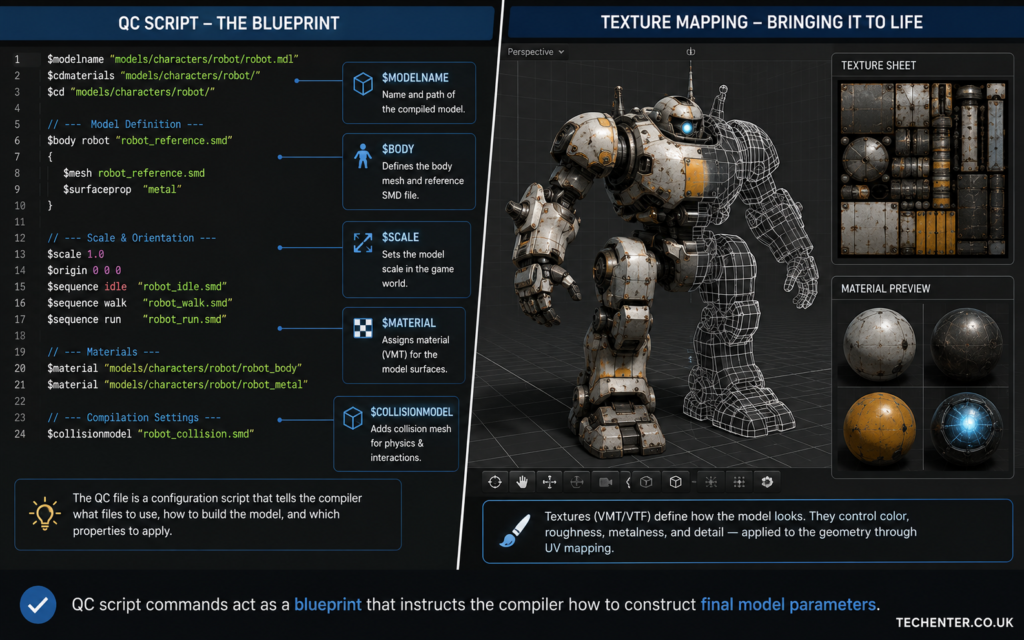
QC Script File
The QC file is the most important file in the compilation process.
This plain text script tells the compiler:
- Model name
- Output location
- Material paths
- Animation sequences
- Scaling values
- Physics settings
Without a properly configured QC file, compilation will fail.
Step-by-Step Guide to Compiling a Model for SFM
Many creators use Crowbar because it simplifies the compilation process through a graphical interface.
Step 1: Organize Your Project Files
Create a dedicated project folder containing:
- SMD or DMX files
- Texture files
- Material files
- QC script
A clean folder structure reduces errors and makes troubleshooting easier.
Step 2: Create Your QC Script
Create a text file and save it with a .qc extension.
This file contains all instructions needed by studiomdl.exe.
Step 3: Install and Open Crowbar
Crowbar is one of the most popular Source Engine compilation tools.
After installing:
- Open Crowbar
- Navigate to the Compile tab
- Configure the Source Filmmaker game path
Step 4: Load Your QC File
Browse to your QC script and select it as the source file for compilation.
Step 5: Select the Output Folder
Choose your desired output directory, typically:
Step 6: Run the Compile Process
Click the Compile button and monitor the console output.
If everything is configured correctly, Crowbar will generate:
- MDL files
- VVD files
- VTX files
These files can now be loaded directly into Source Filmmaker.
For a more detailed workspace setup guide, see our article on How to Properly Organize Custom SFM Mod Folders.
Sample QC Script Example
Below is a simple QC script structure used for basic prop models:
This script defines:
- Model name
- Mesh source
- Material directory
- Animation sequence
- Scale value
Common SFM Compile Errors and Fixes
Almost everyone encounters errors during their first few compilations.
Fortunately, most issues are easy to fix once you know the cause.
Error: Mismatched Vertex Count in Animation Sequence
Cause
The reference mesh and animation mesh contain different vertex counts.
Solution
Ensure that:
- Geometry remains unchanged after exporting.
- Shape keys use identical topology.
- No vertices are added or deleted between exports.
Error: Missing Materials
Cause
The compiler cannot locate VMT or VTF files.
Solution
Verify:
- Material paths in the QC file.
- VMT configuration settings.
- Texture folder locations.
Model Appears Completely Black
Cause
Usually caused by:
- Incorrect material paths
- Missing textures
- Reversed normals
Solution
Check:
- VMT file settings
- Texture locations
- Mesh normal directions
For advanced rendering issues, read our guide on Fixing Common Ambient Occlusion and Shadow Glitches in SFM.
Pro Tips for Optimizing SFM Models
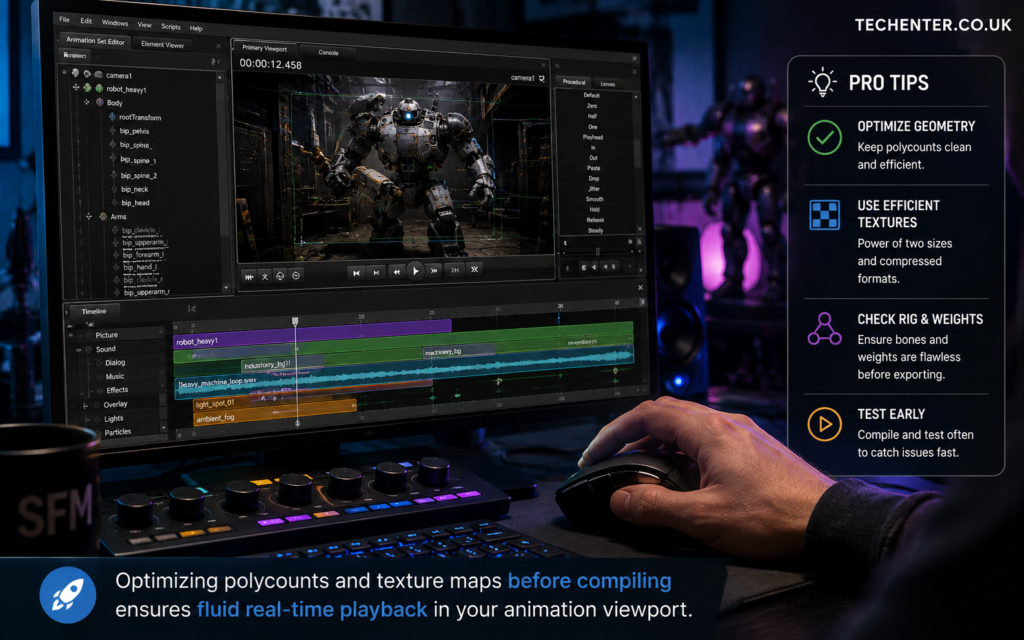
Source Filmmaker runs on an older 32-bit Source Engine architecture, which means optimization is extremely important.
Keep Polygon Counts Reasonable
Recommended targets:
- Props: Under 10,000 polygons
- Characters: 40,000–50,000 polygons
Excessive geometry can cause slowdowns and crashes.
Use Fewer Material Sheets
Instead of using many separate textures:
- Combine textures into larger atlases
- Reduce material calls
- Improve performance
Optimize Bone Counts
The Source Engine has bone limitations depending on the game branch.
Keep skeletons:
- Clean
- Efficient
- Free of unnecessary helper bones
Test Frequently
Compile and test often instead of waiting until the end of the project.
Small issues are easier to identify before they become major problems.
For more rigging advice, check out The Ultimate Source Engine Rigging and Valve Biped Guide.
Final Thoughts
Learning how to perform a successful SFM compile is one of the most important milestones for any Source Filmmaker creator. Once you understand how meshes, materials, QC scripts, and compilation tools work together, you’ll gain complete control over your custom assets.
Whether you’re importing a simple prop, a fully rigged character, or a complex animated object, mastering the compilation workflow will dramatically improve your efficiency and unlock far more creative possibilities inside Source Filmmaker.
Have you encountered a difficult compile error recently? Share your experience in the comments below, and help fellow animators solve their Source Engine challenges.
For More Information, please visit:Techenter.co.uk